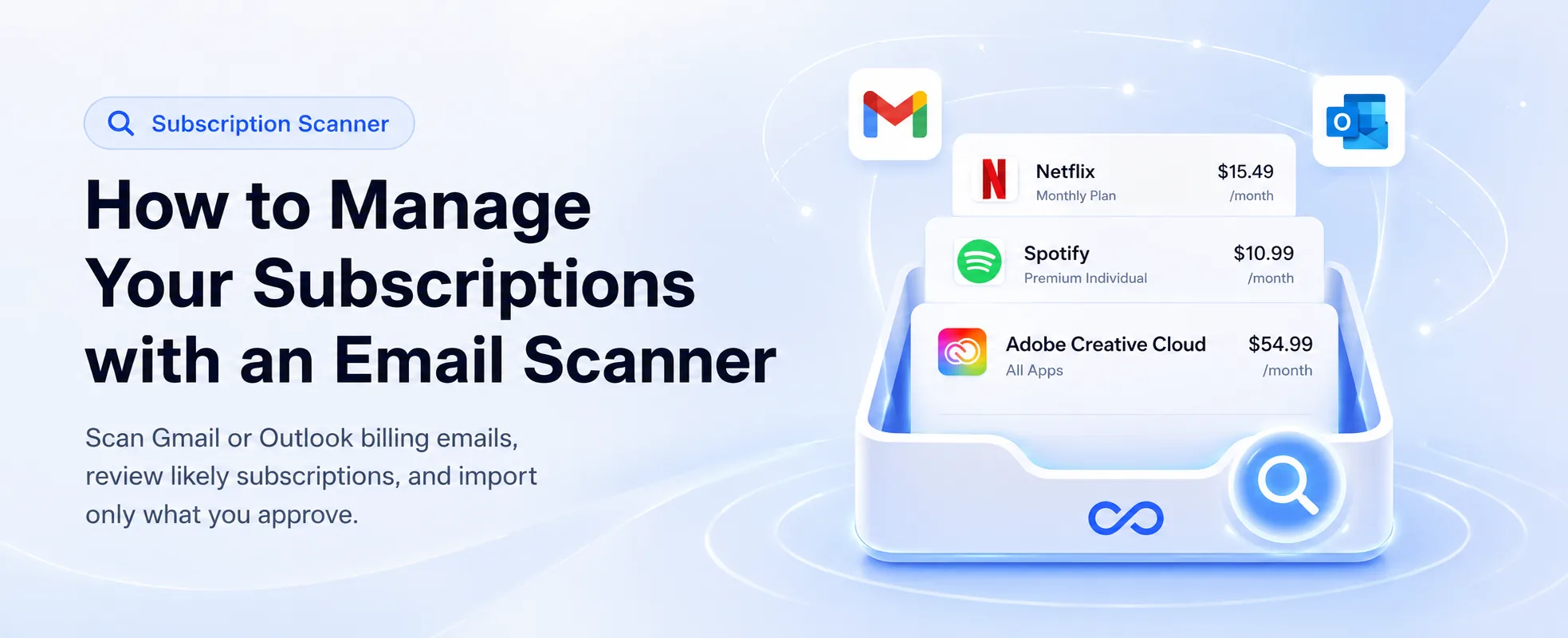
Managing subscriptions is harder than it looks. Some renew monthly, some renew annually, some bill through Apple or Google, and some use vendor names that do not match the product you actually signed up for. Before you can decide what to keep or cancel, you need a reliable way to discover what is active and a subscription tracking system to keep the clean list up to date.
This article focuses on one method: scanning email receipts. If you want the broader checklist, including app stores, PayPal, and bank statements, read our separate guide on how to find all your subscriptions. If you want the video walkthrough, use the CostLoop extension guide.
CostLoop's Email Scanner is built for the email-receipt step. Instead of connecting a bank account, it checks Gmail and Outlook billing emails, finds likely recurring subscriptions, and lets you review the results before importing anything into your CostLoop dashboard.
Quick answer
CostLoop's email subscription scanner searches Gmail and Outlook for billing receipts, renewal notices, invoices, and payment confirmations. It shows likely subscriptions for review and imports only the results you approve. Current as of August 2026: Free users can preview up to 5 detected subscriptions; Pro and Business users can view and import all detected results.
The fastest ways to find every subscription you are paying for
Email is a useful place to start, but it is not the only place to check. Many subscriptions send receipts to Gmail or Outlook, while others appear only in an app-store account, PayPal billing agreement, bank statement, or an old inbox. For the most complete audit, scan your email first, then cross-check the other payment sources.
Most subscriptions do not announce themselves clearly. A receipt might come from a payment processor, an app-store purchase might hide the real service name, and an annual plan might charge only once every 12 months. If you are running a small business, freelancing, or managing a startup budget, those quiet charges quickly become real waste.
The common manual approach is to open your bank statement and look for recurring card charges. That helps, but it misses context. Your inbox often has better information: plan names, renewal dates, currency, receipt numbers, sender domains, and cancellation or account links.
How an email subscription scanner works
An email subscription scanner looks for recurring billing signals and turns them into a reviewable list. In CostLoop, the scanner checks Gmail and Outlook for receipt emails, invoices, renewal notices, and payment confirmations. It then groups related emails into likely subscriptions and shows useful details: vendor name, price, currency, billing cycle, renewal date when available, and the email provider where it was found.
This is useful because it gives you a practical starting point. You do not have to remember every tool you signed up for. You can scan, review, correct anything uncertain, and then import only the subscriptions you want to track.
What CostLoop looks at in Gmail and Outlook
Current as of August 2026, CostLoop requests read-only access for the email account you connect. The scanner first checks message metadata such as sender, subject line, date, and message identifiers. For messages that look like billing or subscription emails, it may also process the text or HTML content of that likely billing message to identify price, currency, billing cycle, and renewal context. Raw email content is not stored or shared.
How a potential subscription is identified
CostLoop looks for billing language and receipt patterns rather than relying on one vendor list. Examples include terms like receipt, invoice, subscription, renewal, billing, payment confirmation, auto-renew, trial ending, and charged. The scanner can group multiple receipts from the same sender or domain into one candidate subscription.
What happens before a subscription is added
Nothing is imported automatically. CostLoop shows detected candidates inside the extension first. You review the vendor, price, currency, billing cycle, and renewal date, correct anything uncertain, and choose which subscriptions to import. If a result needs a currency, price, or billing-cycle correction, the scanner marks it for review.
Scanner workflow
The workflow is intentionally review-first:
The scanner does not make cancellation decisions for you. Its job is to surface likely subscriptions, give you enough context to review them, and help you move approved records into CostLoop.
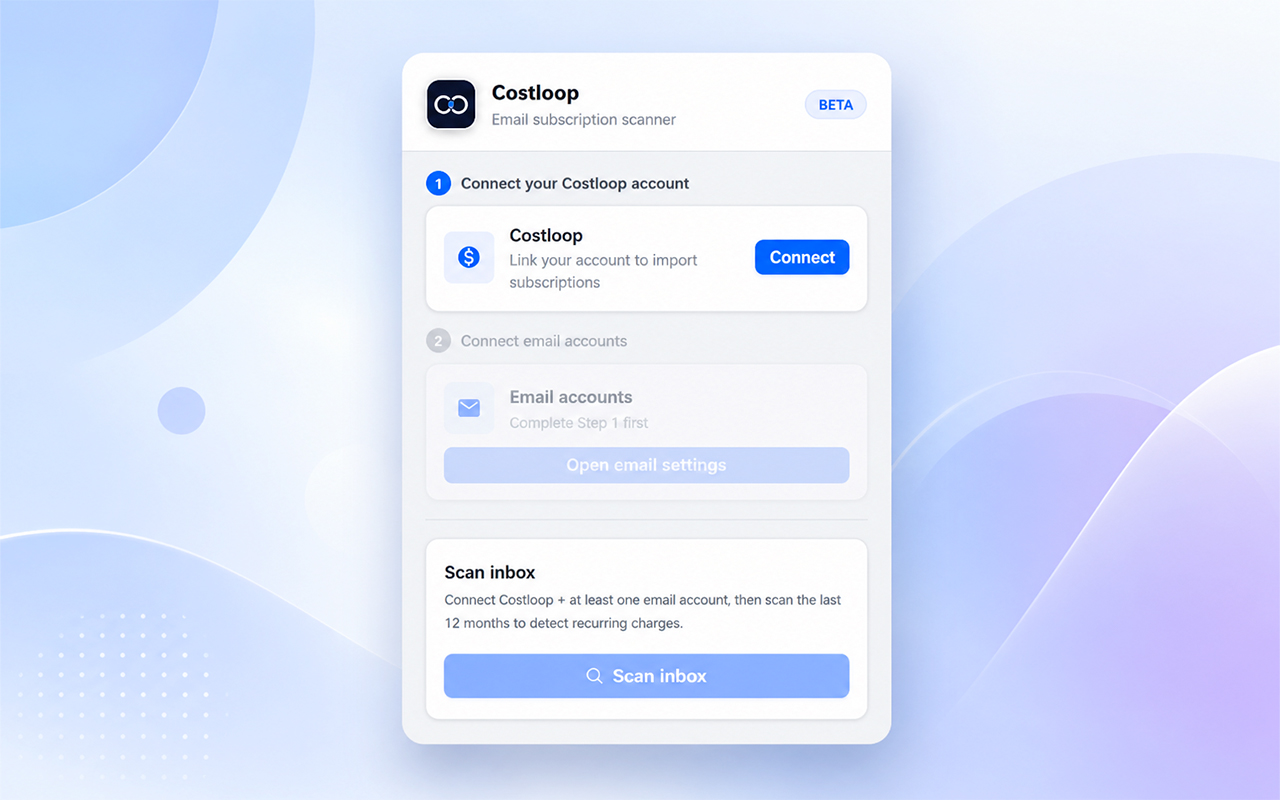 Connect the extension to CostLoop and authorize the inbox you want to scan.
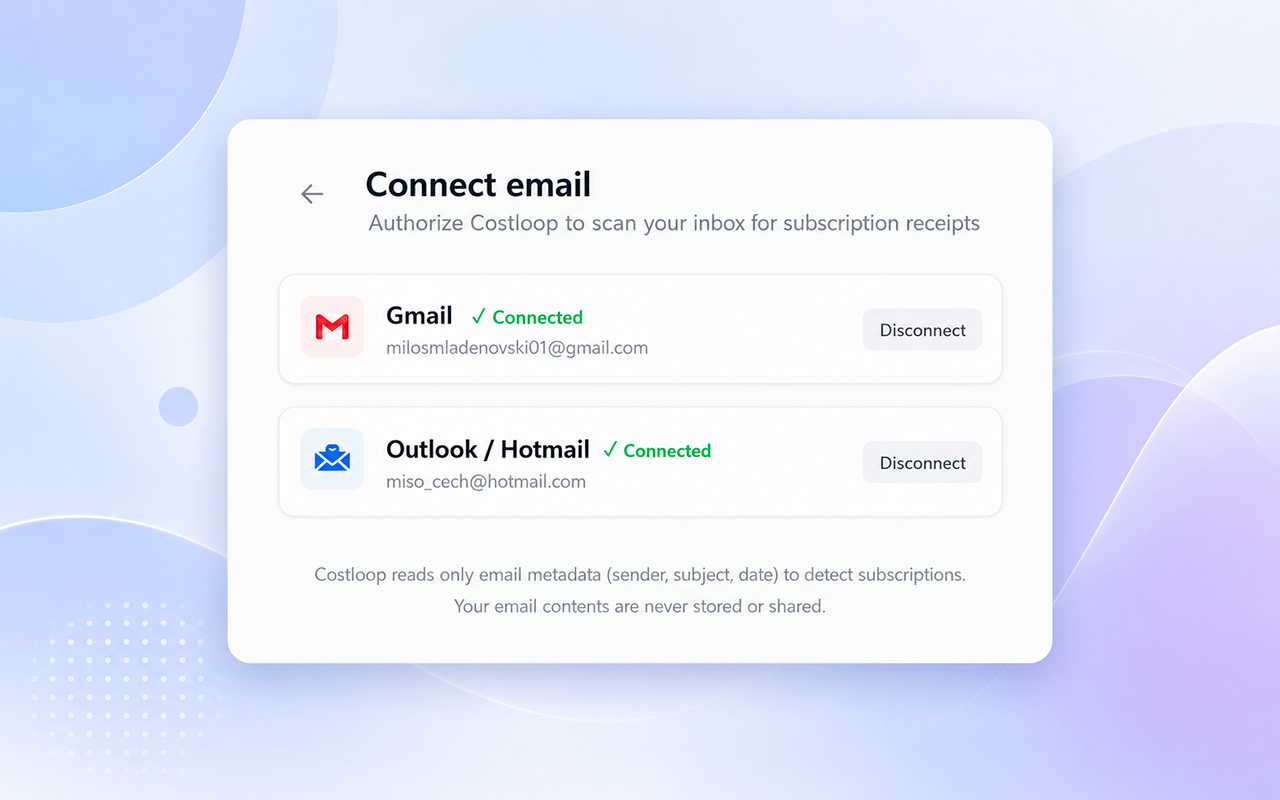 Confirm Gmail or Outlook is connected before opening the extension from app.costloop.app.
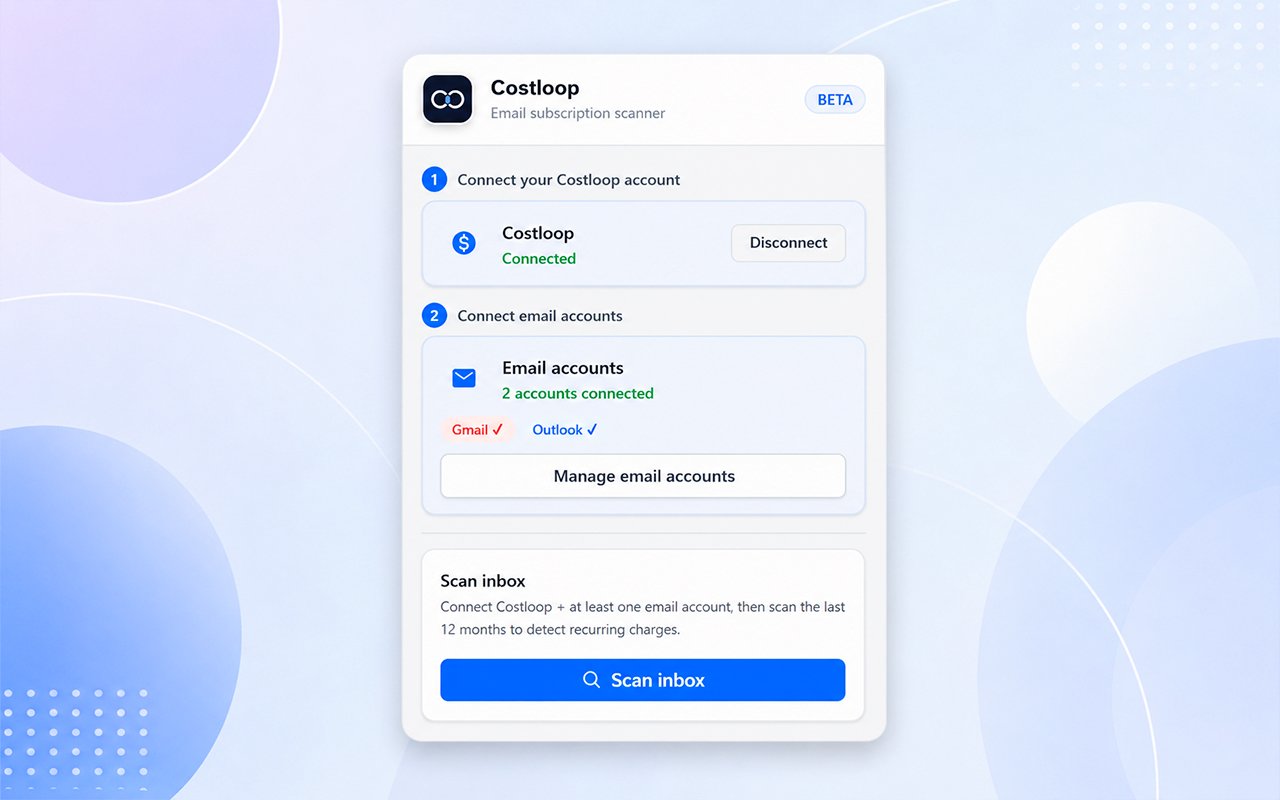 Start a scan, review candidates, and import only the subscriptions you approve.
Is it safe to scan your email for subscriptions?
CostLoop is designed so the scan is explicit, temporary, and review-based. You choose the email account, start the scan, review the candidates, and decide what gets imported. Read the current email scanner privacy and permissions, Privacy Policy, Terms, and CostLoop security practices before connecting an inbox.
What email permissions does CostLoop request?
CostLoop uses OAuth authorization for Gmail and Outlook instead of asking for your email password. The extension uses the authorized access only for the scanner's subscription-discovery purpose. The extension does not add back browser session scraping, direct database access from the extension, or raw OAuth refresh-token storage inside the extension.
Does CostLoop read or store your emails?
CostLoop processes message metadata and likely billing-message content during a scan so it can detect receipts and subscription details. Raw email content is not stored or shared. Only the subscription details you choose to import are saved to your CostLoop account. This means the useful dashboard record is kept, but the underlying email content is not turned into a permanent CostLoop document library.
How to revoke Gmail or Outlook access
You can disconnect your inbox from CostLoop's Connect Email settings. Disconnecting removes CostLoop's integration and stored credentials. For Google, CostLoop also attempts OAuth revocation where supported, and you can review connected apps in Google Account permissions. For Microsoft, remove the CostLoop app from your Microsoft account or organization app-permission settings because targeted programmatic revocation is not always available without broader permissions.
Install the CostLoop Scanner
The scanner is free to install. Free users can preview up to 5 detected subscriptions. Pro and Business plans unlock all detected results and importing. For current plan details, see the CostLoop pricing page. Click the banner below to open the official Chrome Web Store listing.
Why email scanning works better than guessing
No single place has the whole truth. App stores show app-store subscriptions. Bank statements show charges, but not always product details. PayPal shows PayPal billing agreements. Email is often where those systems send receipts.
An inbox-based scanner can surface hidden patterns across services: monthly software tools, yearly domain renewals, design apps, project management tools, AI products, hosting, newsletters, and business utilities. It is not magic, and you should still review the results, but it is much faster than searching for every vendor manually.
What can an email subscription scanner miss?
An email scan is a discovery method, not a guarantee of a complete financial record. It can miss subscriptions whose receipts were sent to another address, fall outside the scan period, were deleted, or do not contain billing signals the detector recognizes. It can also surface a receipt that no longer represents an active subscription. For more detail, see email scanner accuracy and troubleshooting.
False positives
A false positive happens when a message looks like a recurring charge but is actually a one-time purchase, refund notice, quote, credit, or account notification. CostLoop reduces this risk by making results reviewable before import.
Annual subscriptions and scan windows
Annual plans are easy to miss near scan-window boundaries. If a yearly receipt is older than the scanned period, it may not appear. When doing a serious audit, check at least 14 months of bank or card statements so yearly renewals have a better chance of showing up.
Multiple or old email accounts
Subscriptions often stay tied to the email address used at signup. If you changed jobs, switched domains, or used an older personal inbox, scan or manually search those accounts too.
How to find subscriptions in Gmail manually
Search each email account for billing language instead of trying to remember vendor names. Useful searches include receipt, invoice, subscription, renewal, billing, payment confirmation, auto-renew, trial ending, and charged. Review sender names, the most recent billing date, and whether the receipt appears to repeat.
Check Apple and Google Play subscriptions
Some subscriptions are billed through an app store instead of directly by the vendor. Apple documents that deleting an app does not cancel an in-app subscription, so check Apple subscription settings and complete the cancellation process there when needed. Google Play also has a dedicated subscriptions area for active Android app subscriptions.
Official references: Apple Support: cancel a subscription and Google Play Help: cancel, pause, or change a subscription. Last verified: July 15, 2026.
Check bank and credit-card statements for recurring charges
Bank and card statements prove that a charge happened, which email alone cannot always prove. Look for repeated merchant descriptors, annual renewals, and small monthly charges. The downside is that descriptors can be cryptic, and a single bank account will not reveal subscriptions paid with a different card or PayPal account.
Check PayPal and other recurring payment services
Some subscriptions are attached to PayPal automatic payments or billing agreements. Check your PayPal account settings for active automatic payments and cancel anything you no longer use. Official reference: PayPal Help: automatic payments. Last verified: July 15, 2026.
Email scan vs bank statement scan
Email scanning and bank-statement scanning answer different questions. Email helps identify services and receipt context without linking a bank account. Bank or card statements confirm actual charges but may hide the product behind an unfamiliar descriptor. The two methods work best together.
| Source | Strength | Blind spot | What to verify |
|---|---|---|---|
| Email scan | Finds receipt context, vendor names, renewal language, and plan clues. | Can miss deleted receipts, old inboxes, unsupported wording, or messages outside the scan window. | Price, currency, billing cycle, and whether the subscription is still active. |
| Bank/card statement | Shows actual money leaving the account. | Merchant descriptors can be unclear and only cover that payment account. | Vendor identity, owner, renewal date, and whether the charge repeats. |
| App stores | Shows subscriptions billed through Apple or Google Play. | Does not show subscriptions bought directly on vendor websites. | Whether cancelling in the app store is required. |
| PayPal | Shows recurring payment agreements attached to PayPal. | Does not cover card charges outside PayPal. | Active agreements and the merchant account tied to each one. |
Email scanner vs bank scanner vs manual spreadsheet
Each discovery method has a different job. A bank scanner can reveal card charges, but it may not know the service name, billing cycle, or renewal context. A spreadsheet is useful after you already know what to track, but it does not discover forgotten tools on its own. An email subscription scanner sits between those two: it helps discover subscriptions and gives you receipt-level context before you add anything to your tracker.
For the cleanest audit, use all three in order: scan email receipts, check bank and card statements for anything missing, then keep the approved records in a subscription tracker with renewal reminders.
How to cancel subscriptions after you find them
Finding a recurring charge and cancelling it are separate steps. First confirm that the subscription is active. Then cancel through the service's billing settings or through the platform that processes the subscription, such as Apple, Google Play, or PayPal. Keep the cancellation confirmation email in case the vendor bills again.
CostLoop helps you discover, review, track, and store cancellation links. It does not automatically cancel a subscription for you unless the provider itself offers a cancellation path you complete outside CostLoop.
CostLoop email scanner: free vs paid features
The free scanner experience is meant to show whether the tool is useful without hiding how it works. Free users can see up to 5 detected subscriptions. Any additional detections stay locked so the scanner cannot be repeatedly used to reveal everything without upgrading.
Pro and Business users get the unrestricted scanner experience: all detected subscriptions are visible, review fields are editable, and selected subscriptions can be imported into the CostLoop dashboard. That makes it easier to turn a one-time scan into a real subscription management system.
What gets imported into CostLoop
CostLoop does not import everything automatically. You choose which detected subscriptions to add. The imported subscription record can include fields such as vendor name, price, currency, billing cycle, website, and next renewal date when the scanner can infer it.
If a receipt does not include enough information, the scanner marks it for review. That is intentional. A clean subscription dashboard is more valuable than a long list of half-correct guesses.
What CostLoop does not do
CostLoop does not read unrelated browser pages, scrape website sessions, or import subscriptions without your review. The extension works with CostLoop, Gmail, and Outlook through explicit authorization. It also does not store raw OAuth refresh tokens in the extension; email access is handled through CostLoop's secure server-side broker.
Troubleshooting scanner results
Why didn't CostLoop find a subscription?
The receipt may be in another inbox, outside the scan window, deleted, filtered into a folder the provider did not return, or written in a way the detector does not recognize. Check old accounts, app stores, PayPal, and bank statements for important renewals.
Why was a non-subscription detected?
Some one-time purchases, quotes, credits, and refund notices use subscription-like language. Review the result before importing and leave it unchecked if it is not an active recurring subscription.
Can I scan more than one email account?
Yes. CostLoop supports Gmail and Outlook connections. If your subscriptions are spread across personal, work, and old inboxes, connect the relevant accounts one at a time and review the results carefully.
Other places to check after scanning email
An email scanner is a strong starting point, but a full subscription audit should also check:
- Apple subscriptions: iPhone Settings or App Store profile, then Subscriptions.
- Google Play subscriptions: Google Play account, then Payments & subscriptions.
- PayPal automatic payments: PayPal settings, then Payments and automatic payments.
- Bank and card statements: review at least 14 months to catch annual subscriptions.
- Old email addresses: many forgotten tools are tied to an old inbox.
If you are doing this for a company rather than a personal inbox, pair the scanner with a shared small business subscription tracker so owners, renewal dates, invoices, and cancellation links do not disappear into one person's inbox.
You can also download our free SaaS inventory and renewal checklist templates on GitHub, or duplicate the Notion SaaS inventory template, if you want a spreadsheet-friendly or workspace-friendly starting point for tracking owners, renewal dates, billing cycles, and cancellation links.

About the author
Milosh Mladenovski is a CostLoop founder and works on the product's subscription-discovery and user experience workflows. This guide was updated on August 12, 2026 against CostLoop's current email-scanner behavior, pricing limits, privacy disclosures, and provider documentation.
Frequently asked questions
What is an email subscription scanner?
An email subscription scanner searches billing emails for receipt, invoice, renewal, and payment confirmation patterns. CostLoop scans connected Gmail and Outlook accounts and shows likely subscriptions for review before import.
Is CostLoop a subscription cancellation app?
CostLoop is primarily a subscription tracker and scanner, not an automatic cancellation service. It helps you find subscriptions, track renewal dates, store cancellation links, and decide what to cancel.
Can I use the scanner for business subscriptions?
Yes. CostLoop is built for freelancers, startups, and small and medium businesses that need to track software subscriptions, SaaS renewals, recurring costs, invoices, and cancellation links.
Does the scanner work with Gmail and Outlook?
Yes. The CostLoop Email Scanner can scan connected Gmail and Outlook accounts for billing emails and subscription receipts, then show detected subscriptions for review.
Does CostLoop connect to my bank account?
No. The email scanner method does not require bank or card account access. It uses authorized Gmail or Outlook access to find billing receipts and subscription emails.
How accurate is an email subscription scanner?
Accuracy depends on the email account, scan period, receipt wording, and whether the subscription sends billing emails. Treat scanner results as candidates to review, not as a guaranteed complete financial record.
How do I revoke CostLoop's email access?
Disconnect the inbox from CostLoop's Connect Email settings, then review connected app permissions in your Google or Microsoft account. CostLoop deletes stored integration credentials when you disconnect the integration.
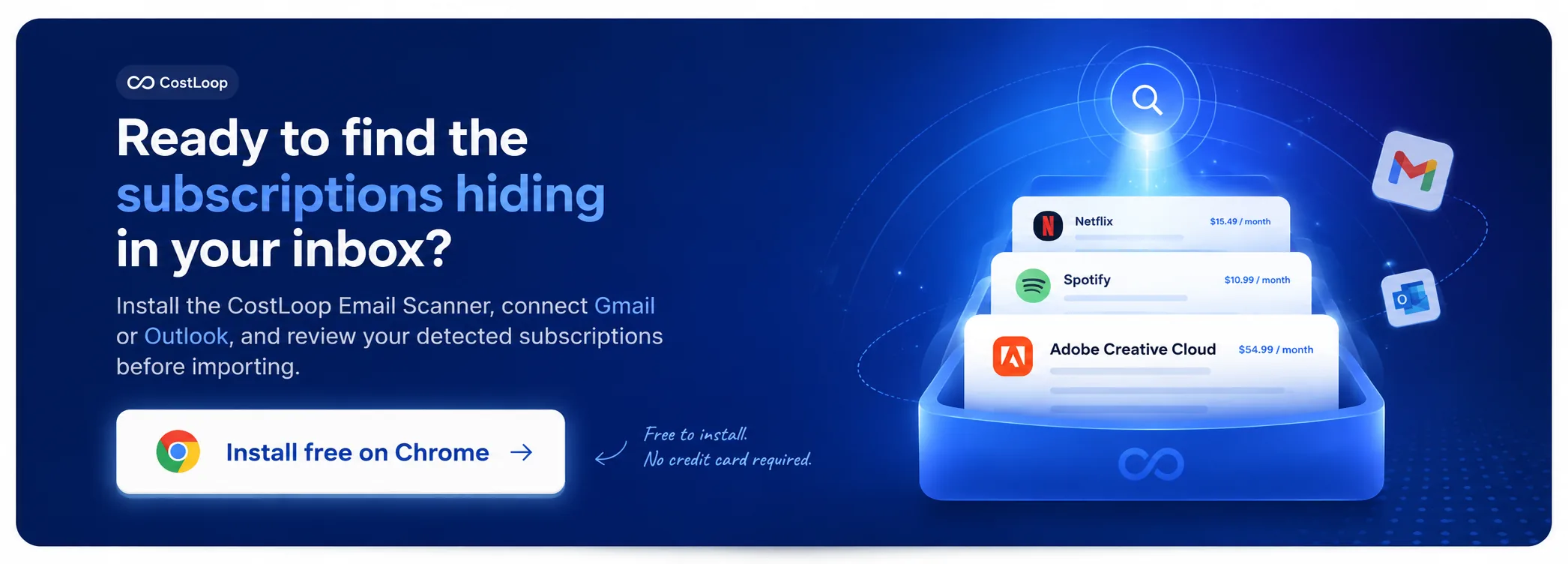
Install the CostLoop Email Scanner and review detected subscriptions before importing.