Cancelling a SaaS subscription sounds simple. You'd think it'd take 30 seconds. In reality, it often takes 30 minutes - and even then, people still get charged the following month because they didn't actually finish. SaaS vendors have quietly made cancellation into an obstacle course, and if you don't know the traps, you'll walk right into them.
This guide gives you a repeatable process for cancelling any SaaS subscription cleanly: your data protected, your card not re-charged, and a paper trail you can actually use if something goes wrong.
Why Cancellation Goes Wrong (More Often Than You'd Think)
The most common scenario: someone decides to stop using a tool, clicks around in settings for a few minutes, doesn't find anything obvious, figures they'll deal with it later, and then gets charged again next month. Or they find the cancel button but stop at a "pause subscription" prompt - and three months later the subscription resumes automatically. Or they cancel through the wrong channel (say, deleting the mobile app) while the web subscription keeps running.
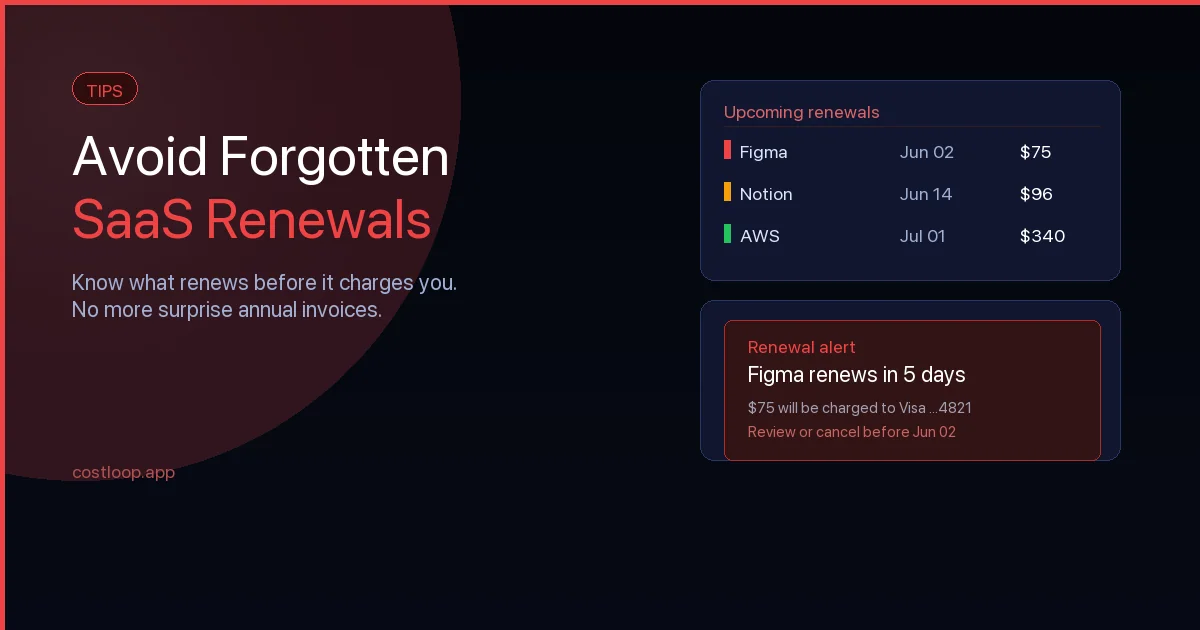
Being charged for a subscription you thought you'd cancelled is a common complaint, and it's easy to see why: a cancellation that isn't confirmed in writing, or a workspace deletion that doesn't stop billing, both leave the charge running. Business billing is typically monitored even less closely than personal credit cards, so this risk is not smaller for SaaS tools - if anything it's larger. If you're trying to improve SaaS renewal tracking, cancellation hygiene is just as important as tracking upcoming renewal dates.
Step-by-Step: How to Cancel a SaaS Subscription Properly
Step 1: Export your SaaS data before cancelling
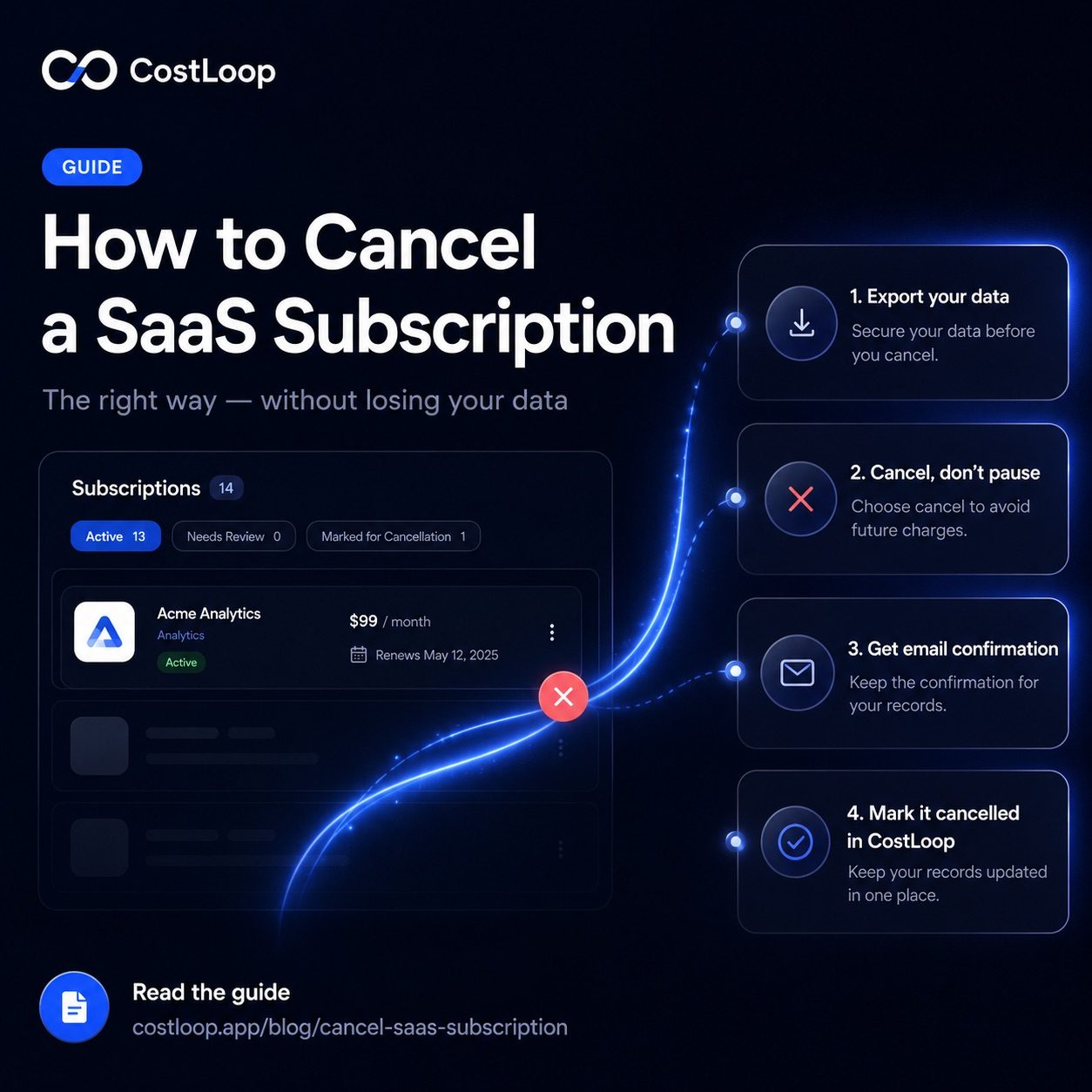
Before you touch the cancel button, complete a full data export - download everything you might need. Project histories, invoices, exported CSVs, reports, templates. Some SaaS tools lock your account the moment you cancel - you won't be able to log in to retrieve anything afterward. Others give you a 30-day grace period, but don't count on it. The cancellation policy varies by vendor, so check it in advance. Export first, cancel second. Always.
Step 2: Find the SaaS cancellation page
Go to Account Settings, then Billing or Subscription. Don't click "Downgrade" or "Change plan" - those just take you to a different paid tier. Don't click "Pause" - that resumes automatically. Look specifically for "Cancel subscription," "Cancel plan," or "Cancel my account." If it's not there, check the vendor's help documentation. Many require you to submit a support request, which is intentionally annoying - do it anyway and keep a copy of your request.
Step 3: Complete the SaaS subscription cancellation flow
Most SaaS tools will put you through a retention flow - "Are you sure?", "What if we gave you 20% off?", "Your data will be deleted." Keep clicking through. If they offer a discount, you can decide whether it's worth staying. Be aware that if you're inside the current billing cycle, you may not receive a refund - auto-renewal for the next period is what you're really trying to prevent. Get all the way to the final confirmation screen - not just partway through.
Step 4: Confirm your subscription is cancelled
Don't assume cancellation worked because you saw a "success" message on screen. Wait for the confirmation email. If it doesn't arrive within 10 minutes, check spam, then log back in and verify your account status. If you can't confirm subscription termination via email, contact support and ask them to confirm in writing. That email is your evidence if you get charged later.
Step 5: Remove the tool from your payment method if possible
For tools that charge your card directly (not through Stripe-managed billing), it's worth removing the card from your account settings after confirming cancellation. This isn't always possible, but when it is, it's a good backstop against re-billing errors.
Step 6: Update your subscription records
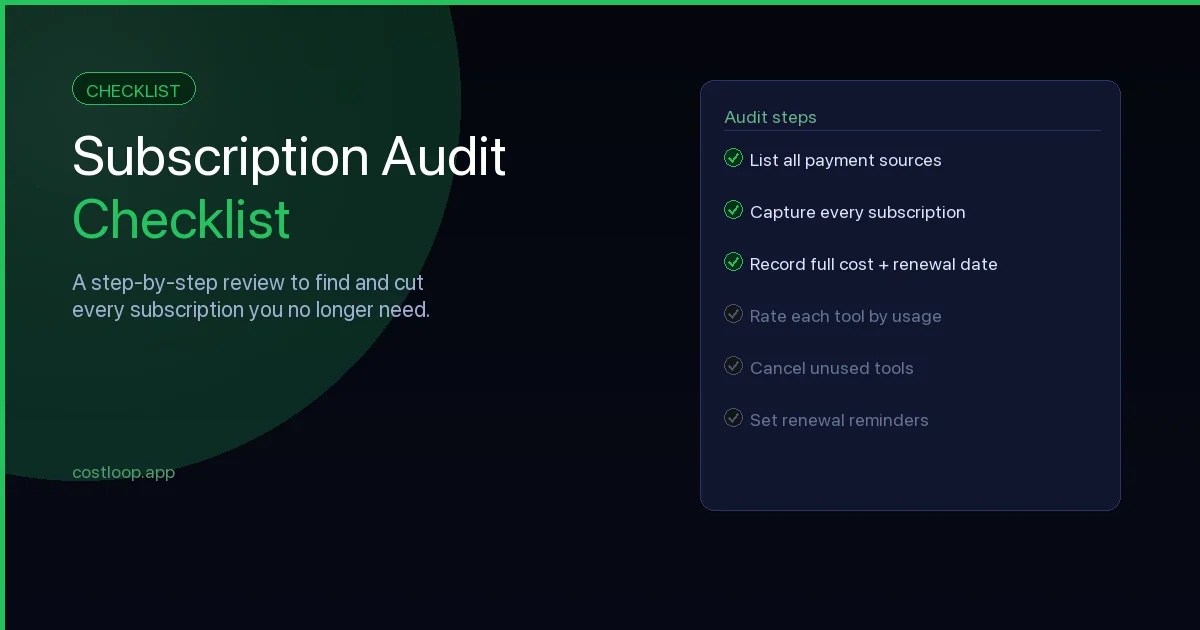
If you're running a subscription audit checklist, mark the tool as cancelled with the date and the confirmation email reference. This matters when you're doing quarterly reviews and can't remember whether you actually cancelled something or just thought about it.
CostLoop keeps a full record of every subscription: what you pay, when it renews, and who owns it. When you cancel, mark it done. When something comes up for renewal, you'll know before the charge hits - not after.
Start free - no credit card neededThe Pause Trap: What "Pause" Actually Means
A lot of vendors have added "pause" as an alternative to cancellation. On the surface it sounds reasonable - take a break, come back when you're ready. In practice, the pause period is typically 1–3 months, after which billing resumes automatically. Unless you set a reminder for exactly when the pause ends, you'll get charged again without noticing. Note that pausing is also different from account deletion - a paused account still exists and can resume billing, while account deletion removes your data and access permanently.
If your intent is to stop using a tool, cancel it - don't pause it. If you genuinely think you might want it back in a month, set a specific reminder date and be honest with yourself about whether you'll actually return. The vendors are counting on you not returning but also not noticing the resumed charge.
When You're Offboarding an Employee
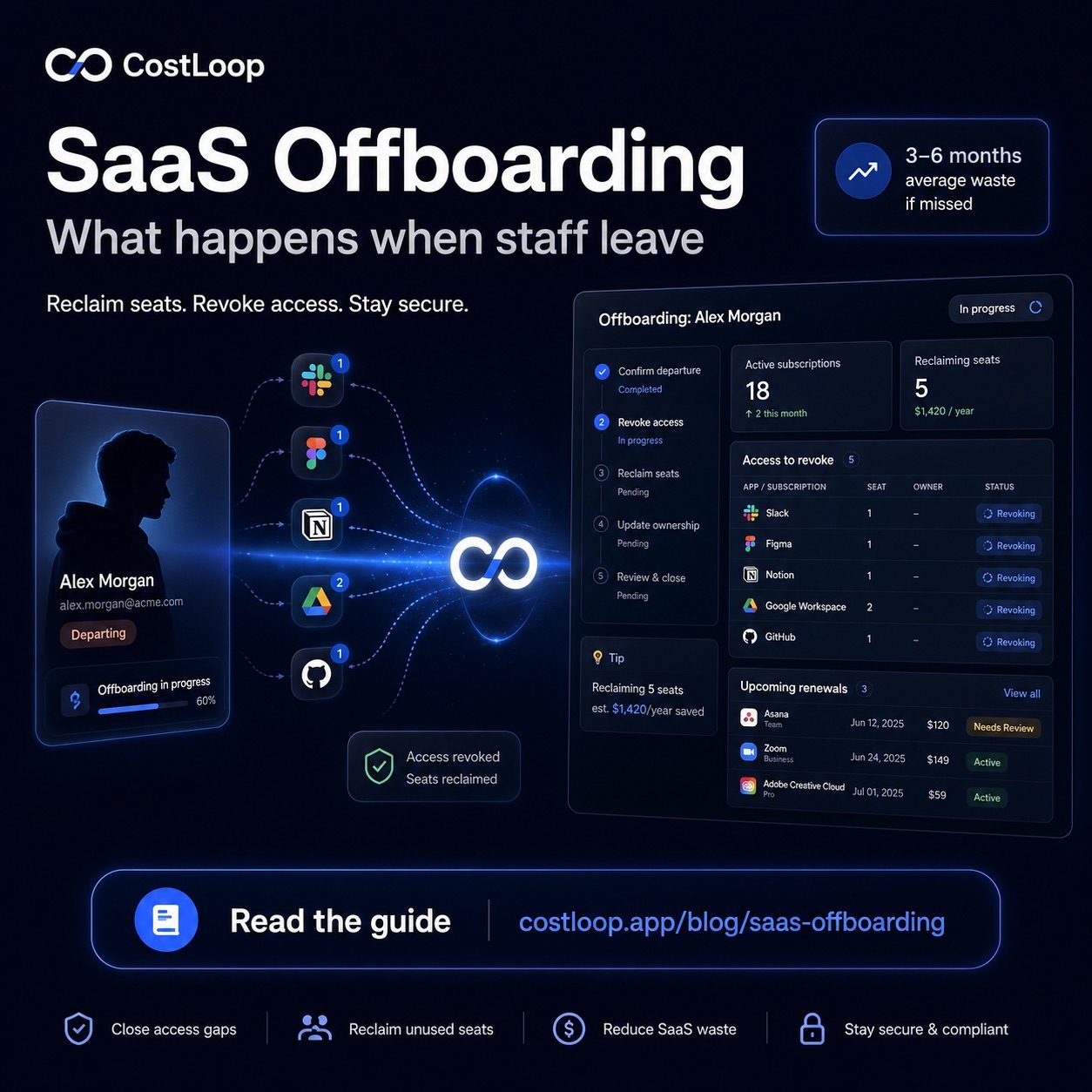
One of the messiest cancellation scenarios is when someone leaves your team. They may have signed up for tools on their own, charged to a personal card or the company card, and nobody knows what they have. If SaaS offboarding isn't part of your HR process, subscriptions stay active long after the person is gone.
The fix is to keep a centralized record of every tool - who owns it, how it's billed, and who to contact if that person leaves. That's exactly what a subscription cancellation tracker like CostLoop is designed to hold.
What to Do If You Get Charged After Cancelling
It happens. Document the charge, find your cancellation confirmation email, and contact the vendor's billing support. Most will issue a refund if you have proof. If they won't, dispute the charge with your bank - most banks treat confirmed-cancellation charges as unauthorized and will side with you. Don't just absorb the charge; it takes 15 minutes to resolve and it's your money.
Cancelling as a SaaS vendor management skill
Knowing how to cancel a SaaS subscription is a core part of software license management for any business. In practice, vendors make it deliberately difficult: no obvious cancel button, cancellation requires contacting support, multi-step flows with "pause instead?" offers. This is a designed friction, not an accident.
Best practice: store the cancellation URL for every subscription at the moment you sign up - not the vendor homepage, but the specific billing or subscription management page. This is the single most useful thing you can do to make future cancellations fast. When a renewal reminder fires and you decide to cancel, you can act in under two minutes instead of hunting through settings pages under pressure.
The time to prepare for cancellation is when you first add a tool, not when the renewal reminder fires. For guidance on exactly what information to store per subscription record, see the guide on what to keep in each subscription record. For vendor management beyond just cancellation - negotiating, renewing strategically, managing contracts - the SaaS vendor management guide covers the full picture.
Frequently Asked Questions
Can I get a refund when I cancel a SaaS subscription?
It depends on the vendor. Monthly subscriptions rarely offer refunds after the charge processes. Annual plans sometimes offer pro-rated refunds within the first 30 days. Always check the refund policy before you cancel - some vendors offer credit rather than cash back.
What happens to my data when I cancel a SaaS subscription?
Most SaaS tools delete or archive your data 30–90 days after cancellation. Export everything before you cancel - not after. Some tools lock you out immediately upon cancellation.
How do I find the cancel button in SaaS apps that hide it?
Look under Account Settings, Billing, or Subscription. If you can't find it, search "[tool name] how to cancel" in the vendor's help docs. Many vendors require you to contact support to cancel - do it in writing and keep the record.
Is pausing a subscription the same as cancelling?
No. Pausing means your subscription resumes automatically after a set period. If you don't want to pay again, you need to fully cancel - not pause.
What is the best way to cancel a SaaS subscription?
Go directly to billing settings (not the vendor homepage), have your cancellation URL saved in advance if possible, and act at least 7 days before renewal to avoid being charged for the next cycle. Export your data before cancelling, get written confirmation that the cancellation processed, and mark it done in your subscription tracker.
Cancelling a subscription properly takes maybe 20 minutes when you do it right. The cost of doing it wrong - lost data, surprise charges, ongoing payments for unused tools - is far higher. Use CostLoop to keep a clear record of every subscription, so you always know what to cancel, when to cancel it, and whether you've actually done it.