There is a good chance you are paying for at least three or four subscriptions you have completely forgotten about. Not because you were careless - because subscriptions are designed to stay invisible. They charge small amounts. They bill annually so months pass between charges. They keep running when you change jobs, switch phones, or close the tab you signed up from. And the receipt lands in an inbox you barely check.
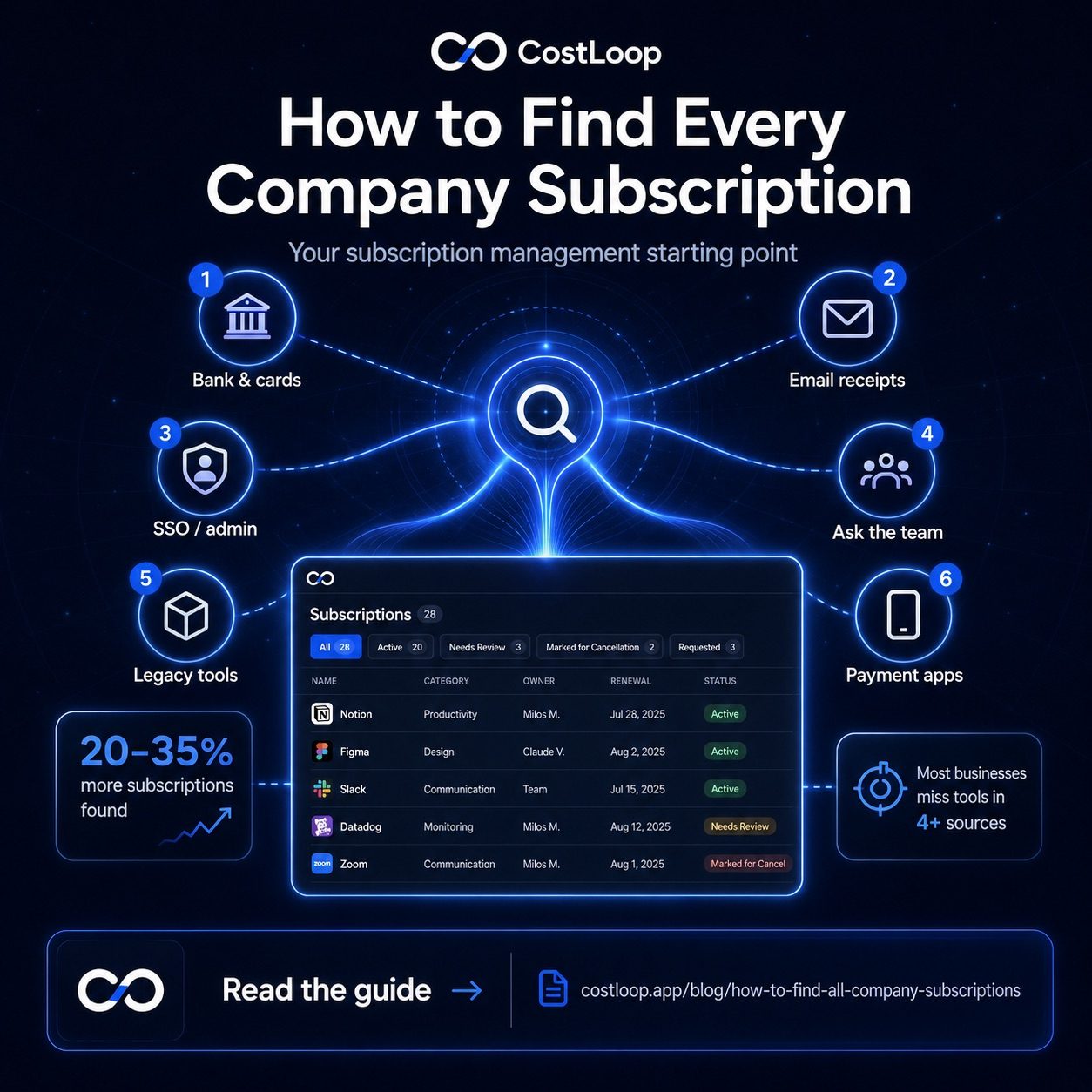
This guide covers every practical method for finding hidden subscriptions: checking bank statements, searching email, reviewing app store purchases, auditing connected apps, and scanning payment platforms for active recurring agreements. Work through all five and you will have a complete picture of what you are actually paying for - or let CostLoop's automatic subscription discovery combine several of these sources for you.
Why subscriptions stay hidden
Most people assume they would notice a charge they didn't authorize. The reality is that subscriptions are specifically designed to avoid being noticed. The amounts are small enough to scroll past on a statement. The billing dates are consistent enough that the charge looks familiar even when you can't name the service. Annual billing removes the monthly trigger that might prompt a review.
A few specific patterns make subscriptions especially easy to miss. Free trials that convert to paid - you signed up, got busy, and forgot to cancel before the trial ended. Annual plans billed under a parent company name you don't recognize. Charges to a card you use infrequently. App store subscriptions from apps you deleted months ago but never cancelled. All of these can run for a year or more before anyone notices.
Method 1: Import and review your bank statements
Bank statements are the most reliable source because every charge has to pass through them - unlike email, which can miss charges if you use a different address, and unlike app stores, which only cover in-app purchases. The problem with bank statements is that scanning them manually row by row is tedious and easy to rush.
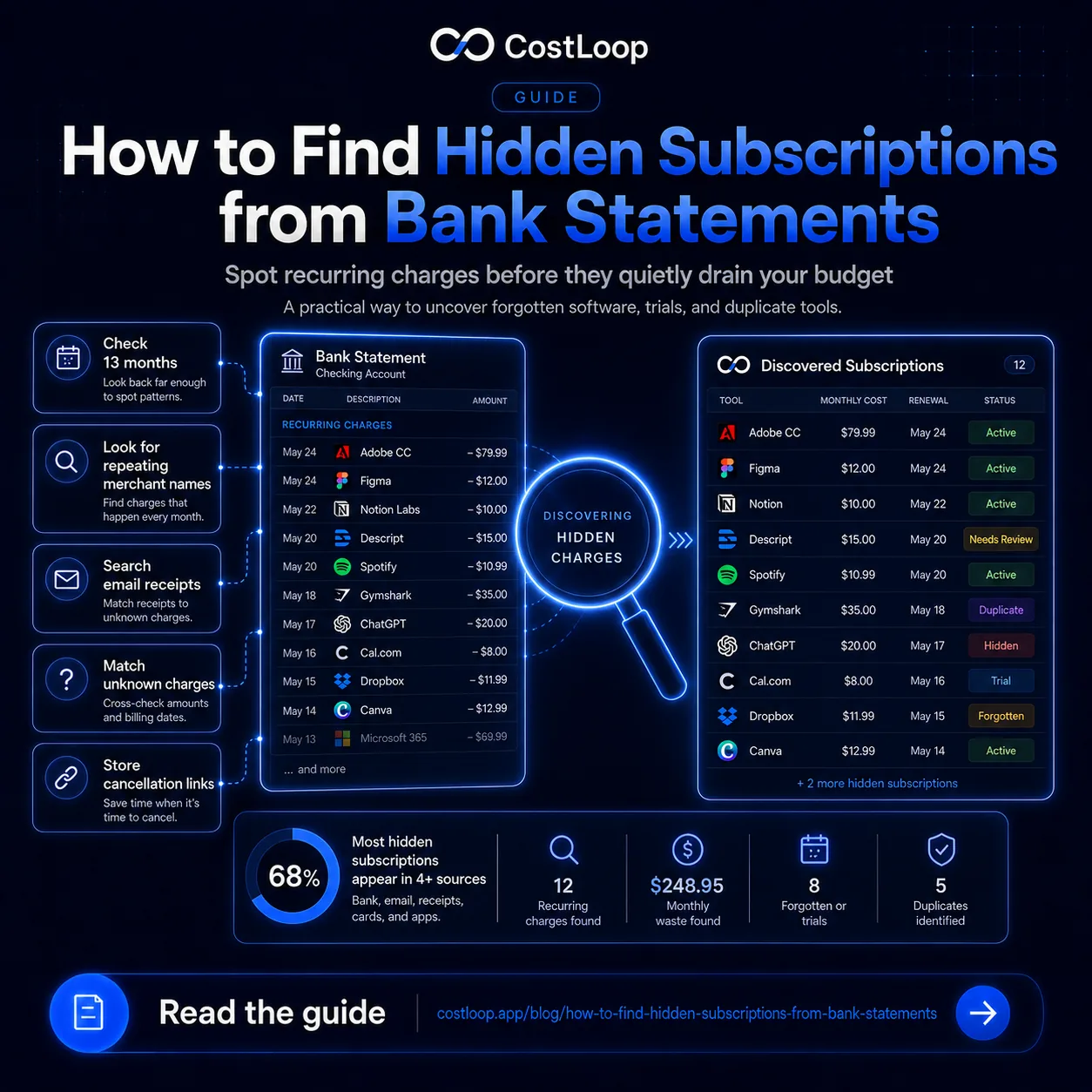
The most effective approach is to download your bank statement as a CSV file and import it into a tool that can automatically identify recurring patterns. CostLoop's bank statement import does exactly this: upload your CSV and it scans for charges that repeat on a regular cycle, flags them as likely subscriptions, and suggests a category for each one. You review the list, confirm what you recognize, and anything unfamiliar becomes an immediate target to investigate.
If you prefer to do it manually, open three months of statements and sort by vendor name. Look specifically for:
- Recurring charges under $15/month. These are the easiest to overlook and the most common source of forgotten subscriptions. Ten $7 charges is $840/year.
- Charges with vendor names you don't recognize. Many SaaS companies bill under a parent company name. A quick web search of an unfamiliar vendor name usually identifies it within seconds.
- Foreign currency charges. A USD charge on a NOK or EUR account often reads as a one-off expense when it's actually a recurring subscription.
- Annual charges from the previous 14 months. Three months of statements won't catch annual subscriptions. Go back far enough to find any charge that occurs once a year.
| Statement type | What to check | How far back |
|---|---|---|
| Main bank account | All recurring charges, direct debits | 14 months |
| Credit card(s) | Recurring charges, especially small amounts | 14 months |
| Secondary or old cards | Subscriptions signed up before switching cards | 3 months minimum |
| PayPal / other payment services | Recurring billing agreements (separate from card) | 3 months |
Method 2: Search your email inboxes
Every subscription you have ever paid for has sent you at least one email - a receipt, a renewal notice, an invoice, or a "your trial is ending" warning. That email history is a nearly complete record of your subscription activity, going back years.
Search every email account you use - personal, work, and any old addresses you still have access to. Run these search terms one at a time. Each one surfaces different tools because SaaS companies use inconsistent language in their emails:
- "receipt"
- "invoice"
- "subscription"
- "billing"
- "renewal"
- "payment confirmation"
- "trial ending"
- "your plan"
- "charged"
- "auto-renew"
When you get results, look at the sender list rather than just the subject lines. The sender is often a tool you have completely forgotten about - one where you signed up, never really used it, and the receipts have been silently arriving ever since. Pay specific attention to senders you don't immediately recognize, and check the date of the most recent email to confirm whether the subscription is still active.
If you manage a team, also check email accounts belonging to former team members if you still have access. Subscriptions signed up under a former employee's email address continue charging even after they leave.
Shortcut: The CostLoop email subscription scanner scans Gmail or Outlook billing emails and surfaces likely recurring charges for you to review - no manual keyword searching required. It uses message metadata and likely billing-message content during the scan, and you confirm each entry before it is added to your dashboard.
Method 3: Check your phone's app store subscriptions
App store subscriptions are the category most people forget exists. They live in a separate system from card statements and email, which means they are easy to miss in any other check. And unlike most subscriptions, they continue charging even if you delete the app - the subscription and the app are independent.
On iPhone (iOS): Open the App Store, tap your profile photo in the top right corner, then tap Subscriptions. You will see both active and recently expired subscriptions. Review everything on the active list and cancel anything you no longer use or recognize.
On Android: Open the Google Play Store, tap your profile icon in the top right corner, then tap Payments and subscriptions, then Subscriptions. The same applies - active subscriptions continue charging regardless of whether you still have the app installed.
It is worth doing this on every phone connected to the same account, including older devices you still have signed in. Subscriptions signed up on a previous phone often continue quietly.
Method 4: Check connected apps in Google Workspace or Microsoft 365
If you use Google Workspace or Microsoft 365, there is a source of hidden subscriptions that most people never think to check: the list of third-party apps connected to your account via OAuth. Every time someone clicked "sign in with Google" or "connect to Microsoft" in a SaaS tool, a connection was created. Some of those tools have paid plans. Some of those plans are still active.
For Google Workspace: Log in to the admin console, go to Security, then API Controls, then App Access Control. You will see every third-party app that has been connected. Cross-reference any paid tools here against your bank statement list.
For Microsoft 365: Open the Azure portal, go to Enterprise Applications, and filter by all applications. This shows everything connected to your Microsoft identity. The same cross-referencing applies.
This check is especially useful for finding shadow IT - tools signed up for by team members without anyone else knowing. The connected app list makes them visible even if no one mentioned them.
Method 5: Audit PayPal and other payment platform agreements
Recurring charges through PayPal exist outside your bank statement. When you authorize a vendor to bill you via PayPal, they create a recurring billing agreement - and that agreement can keep charging even if the PayPal card has changed or you haven't logged in to PayPal in months.
To find all active PayPal recurring charges: log in to your PayPal account, click the gear icon, go to Payments, then click Manage automatic payments. You will see every active billing agreement. Cancel anything you no longer use.
If you use other payment services - Stripe billing links, Wise recurring payments, or similar - check the transaction history in each one separately. These charges often don't appear on card statements because they settle through a different payment rail.
CostLoop's bank statement import scans your CSV for recurring charge patterns and flags likely subscriptions automatically. Upload your statement, review the detected charges, and add the ones you want to track - no manual row-by-row scanning. Available on the Pro plan. See all features or start free.
Start free - no credit card neededWhat to do with everything you find
Once you have worked through all five methods, you will have a raw list of subscriptions - some you actively use, some you forgot about, some you are genuinely unsure about. The next step is to consolidate everything into one place and decide what stays and what goes.
For each subscription you find, record: the name of the tool, the monthly cost (divide annual cost by 12), the billing cycle, the next renewal date, and which payment method it charges. For tools you are on the fence about, note who on your team uses it and whether anyone would notice if it disappeared. That last question often makes the decision obvious.
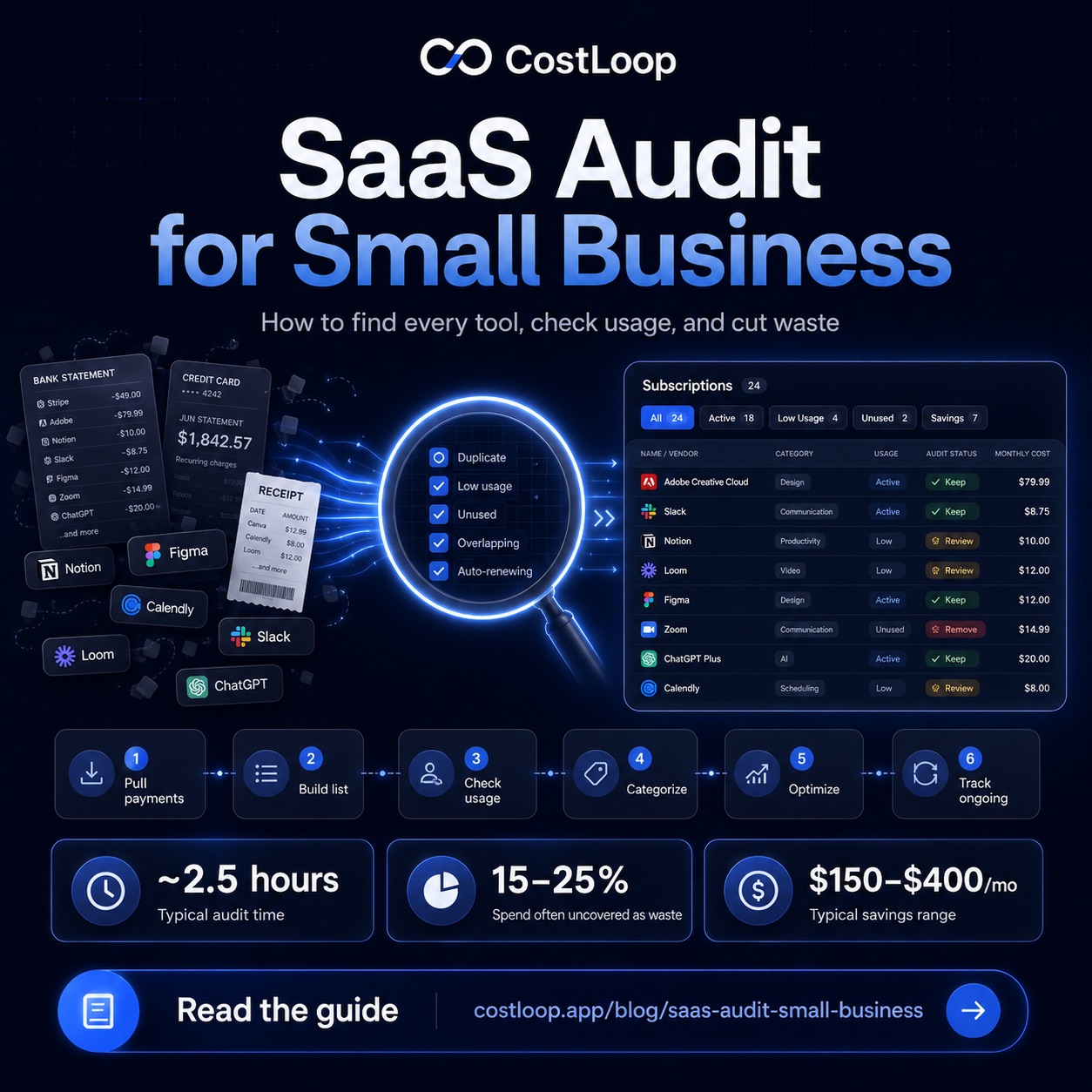
The SaaS audit guide covers what to do once you have a complete list - how to evaluate each tool, which questions to ask before cancelling, and how to negotiate better rates on tools you want to keep. The subscription audit checklist is a printable version of the same process if you want something to work through with your team.
Many people who do this process for the first time find subscriptions they no longer need. The amount recovered depends on your own stack and pricing. The bigger benefit is the ongoing one: once you have a complete subscription list, you know exactly what you're paying for going forward - and you never have to repeat this search.
How to stop losing track going forward
The reason hidden subscriptions accumulate is that there's no central place where new ones get recorded when you sign up for them. The fix is simple in principle: every time you start a subscription, it goes into a tracker immediately. In practice, that requires the tracker to be fast enough that it's less friction than skipping it.
CostLoop is built for exactly this workflow. Add a subscription in under a minute - name, cost, renewal date, payment method. Set renewal reminders at 7, 14, or 30 days before each charge. When something comes up for renewal, you get an alert with enough notice to cancel before the charge hits rather than after. The bank statement import means you can also catch anything you added directly from a statement rather than from memory.
Once your subscriptions are centralized and renewal reminders are set, the search you just did becomes the last time you ever have to do it. Nothing can hide when everything is already tracked.
Frequently asked questions
How do I find all my subscriptions?
Check your bank statements and credit card statements for recurring charges, search your email inbox for receipts and invoices, review your phone's App Store or Google Play subscriptions list, audit connected apps in Google Workspace or Microsoft 365, and check PayPal for active recurring billing agreements. Working through all five sources gives you the most complete picture. For a complete walkthrough of each source, see the guide on how to find all my subscriptions.
How do I find hidden subscriptions on my bank statement?
Download your statement as a CSV and look for recurring charges from the same vendor each month - especially amounts under $15, charges with vendor names you don't recognize, and foreign currency charges. CostLoop's bank statement import automates this by scanning for recurring patterns and flagging likely subscriptions for review.
How do I find recurring charges I didn't sign up for?
Any unfamiliar recurring charge on your statement warrants a search. Copy the vendor name into a search engine - most SaaS billing names resolve quickly. If the charge is from a free trial you forgot about, contact the company directly to request a refund for the period you weren't using it. Many will refund one billing cycle, especially if you cancel at the same time.
How do I see all my subscriptions in one place?
Use a dedicated subscription tracker like CostLoop. Add each subscription as you find it during this process, and going forward add every new subscription when you sign up for it. With all subscriptions in one place and renewal reminders set, you will always know what you're paying for and never be surprised by a charge.
What's the best way to find subscriptions on an iPhone?
Open the App Store, tap your profile photo in the top right, then tap Subscriptions. This shows all active and recently cancelled App Store subscriptions. For non-App Store subscriptions charged to your card, check your bank statement or credit card statement directly.
How do I find recurring charges I forgot about?
The bank statement method is the most reliable - every charge has to go through your bank regardless of how you signed up. Download 14 months of statements to catch both monthly and annual charges. Sort by vendor name to make recurring patterns easier to spot, or use CostLoop's bank statement import to have the recurring charges identified automatically.